

Smart Playlists
Section titled “Smart Playlists”The Smart Playlists plugin lets you create rule-based playlists from your Music Assistant library.
Smart playlists are dynamic: the tracks are re-evaluated whenever you play the playlist, based on your saved rules and current library/provider state.
Installation
Section titled “Installation”Enable the Smart Playlists plugin in Settings → Providers → Add Provider → Plugins. No additional configuration is required.

Creating a Smart Playlist
Section titled “Creating a Smart Playlist”In the Playlists view, select the  button in the top right and choose Create Smart Playlist.

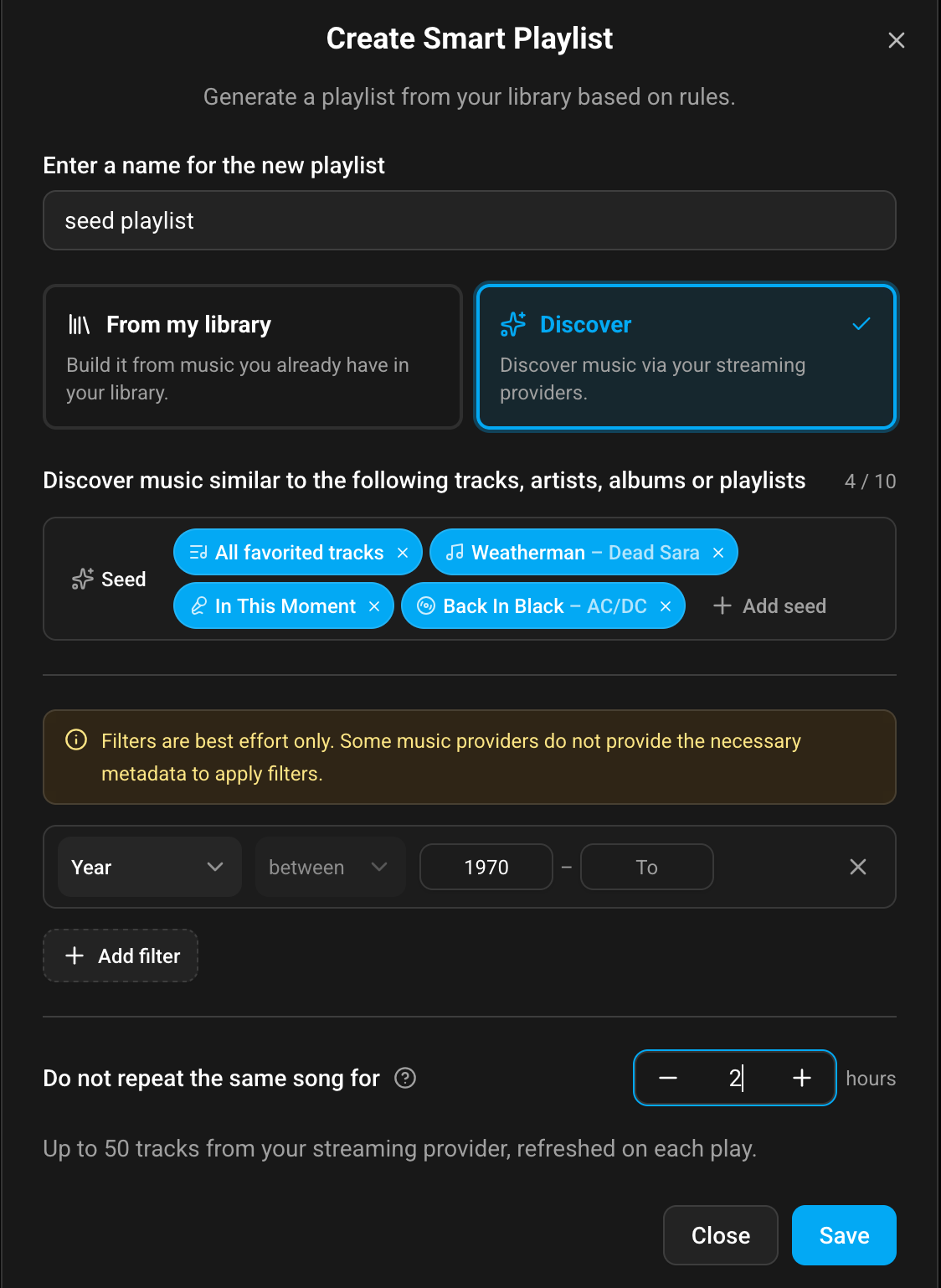
The screenshot above shows a Discover mode setup.
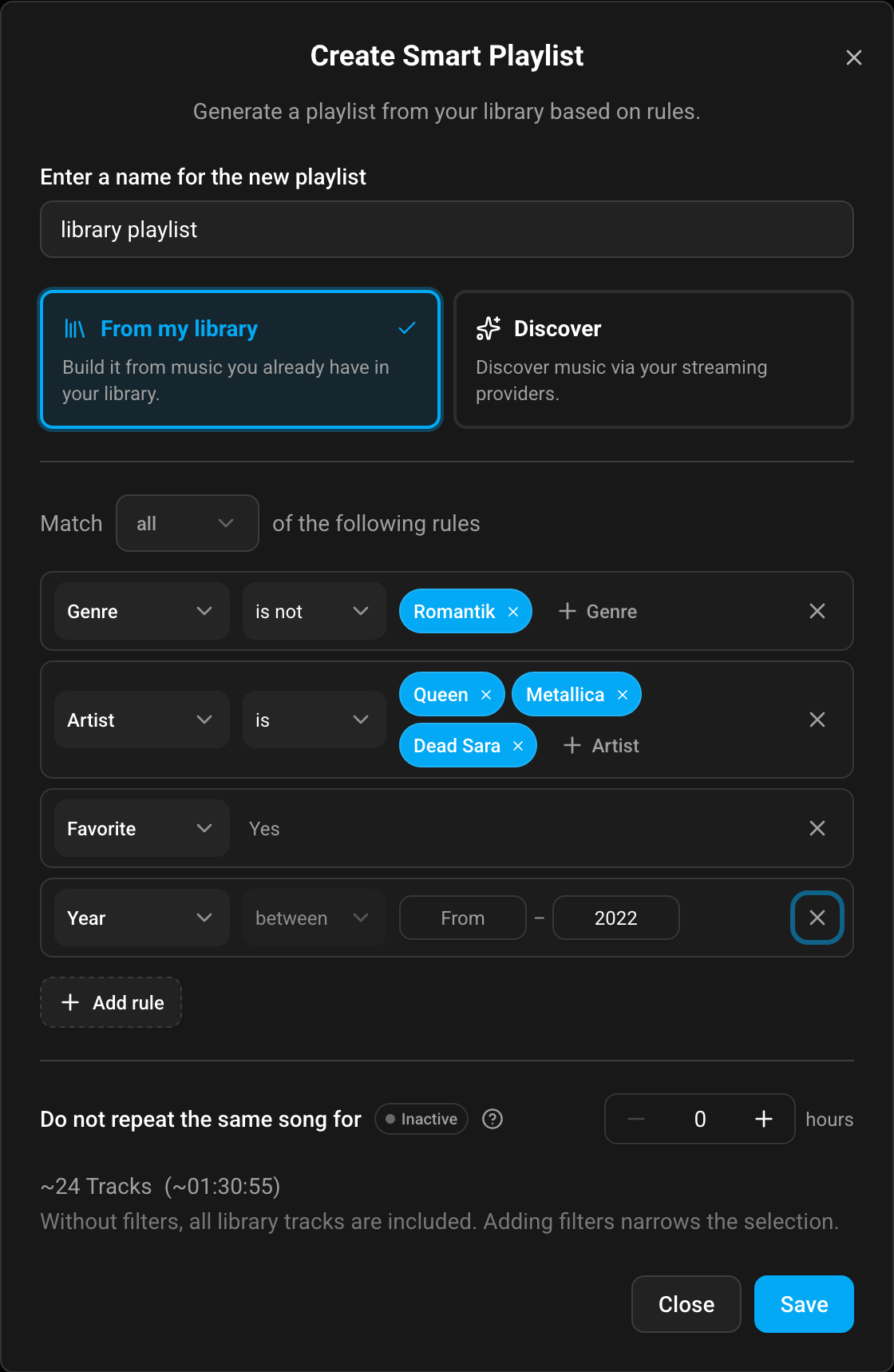
The screenshot above shows From my library mode (rule-based setup).
Enter a name and choose a source mode:
- From my library: build from tracks already in your MA library.
- Discover mode: use one or more seed items (tracks, artists, albums, or playlists) and fetch similar content from supported streaming providers.
Rule model
Section titled “Rule model”Smart playlists use include/exclude style rules:
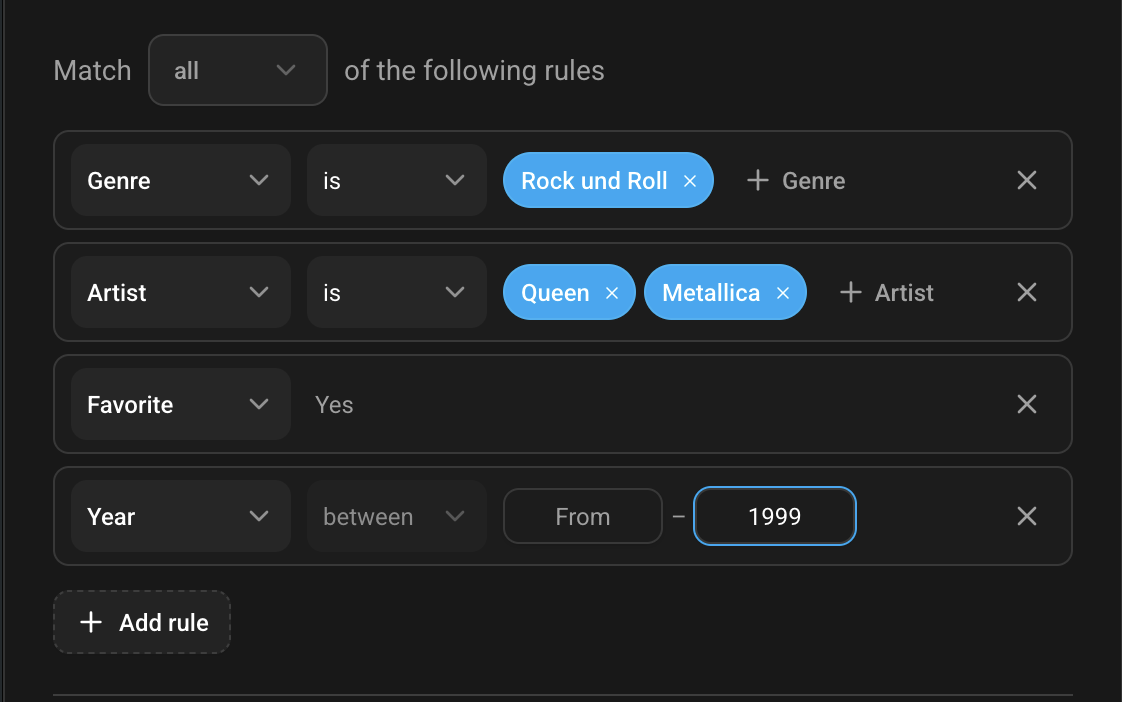
- Genre: is / is not (one or more genres)
- Artist: is / is not (library mode, one or more artists)
- Album: is / is not (library mode, one or more albums)
- Album type: is / is not (filter by album type: album, single, EP, compilation, etc.)
- Favorite: yes (library mode)
- Year: between from/to (you can also use only
fromor onlyto).
Year examples:
from: 1969means 1969 or newer.to: 1980means 1980 or older.
Album type examples:
- Album type is “Album”: only full-length albums (excludes singles, EPs, compilations)
- Album type is not “Single”: excludes all single releases
- Album type is “Album” or “EP”: includes full albums and EPs (excludes singles and compilations)
- Album type is “Live”: only live recordings/concerts
Available album types: Album, Single, EP, Compilation, Live, Soundtrack, Audiobook, Podcast, Unknown album type (albums without a specific type classification or where the music provider does not provide type information).
In From my library mode you can choose whether tracks must match all rules or any rule.
In Discover mode, filters are applied to the provider result after similar content is fetched.
Discover mode
Section titled “Discover mode”When using Discover mode:
- Add one or more seeds from tracks, artists, albums, or playlists.
- Seed lookups depend on provider support for the selected seed types.
- Results are sampled from provider output and refreshed on each play.
De-duplication
Section titled “De-duplication”Use Do not repeat the same song for X hours to prevent recently played tracks from being selected again.
Set it to Off to disable de-duplication.
Track count and duration hint
Section titled “Track count and duration hint”The dialog shows a live estimate while you edit rules:
- From my library mode: live matching track count + duration estimate, updated as rules change.
- Discover mode: no live matching-count calculation; the UI only shows guidance that up to 50 tracks are fetched from your streaming provider.
The screenshot below shows From my library mode (rule-based smart playlist).

The screenshot below shows the Track Count hint for Discover mode.

Playlist detail
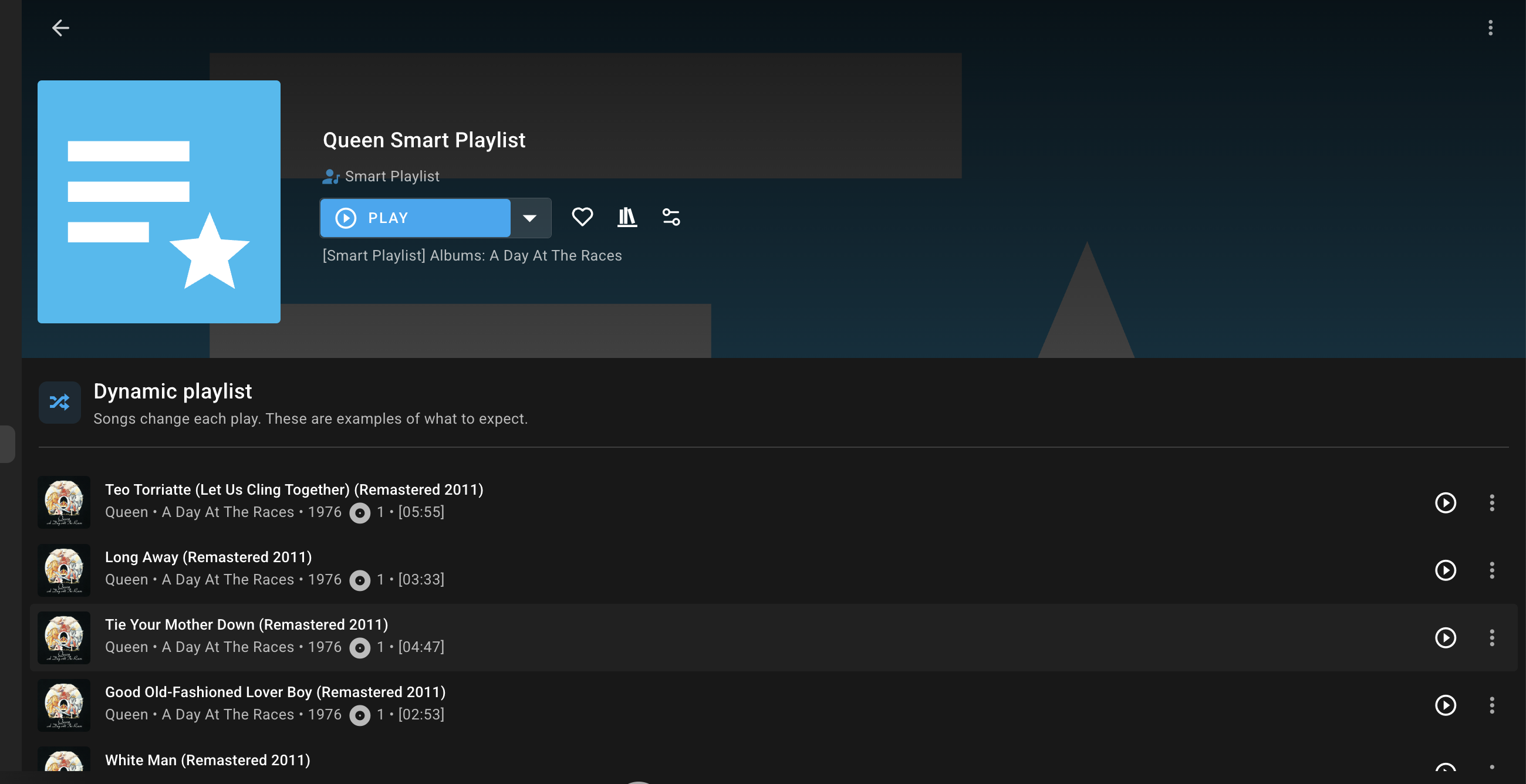
Section titled “Playlist detail”After saving, open the smart playlist to view a current sample output based on your rules.
- Smart playlists only exist as long as the Smart Playlists plugin is installed. Removing the plugin also removes associated smart playlists from the MA library.